Activate Your CIA M365 Guest Account
Purpose of this article
Quick Start
- Open the invitation email
- Look for an email from Microsoft inviting you to join the CIA Team.
- Click “Open Microsoft Teams” in the email.
- Choose your authentication method
- You’ll be prompted to verify your identity.
- Click “I want to set up a different method” if you prefer not to use the Microsoft Authenticator app.
- Verify using phone or email
- Choose either:
- Phone: Receive a text or call with a verification code.
- Email: Receive a code at the email address used for your invitation.
- Enter the code to complete verification.
- Choose either:
- Access the SharePoint folders
Once verified, you’ll be taken to the CIA Team SharePoint site.
Expected Result: You should now be able to view and open documents in the appropriate folders..
Step-by-Step Tutorial
Preparation
- Before you begin:
- CIA’s IT team will create your guest account using the email address we have on file.
- If you’re unsure which email is being used, contact your CIA partner to confirm.
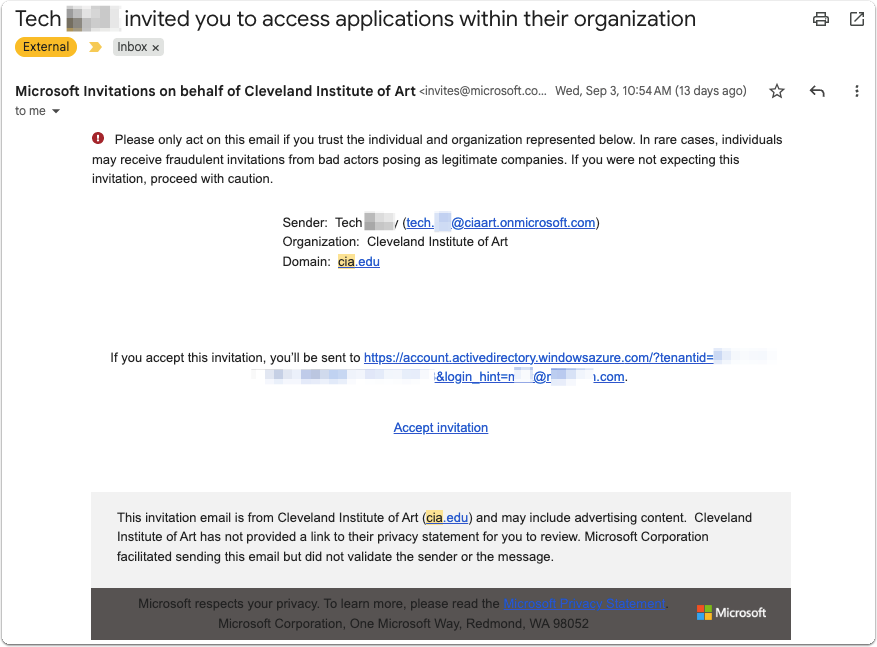
- You’ll receive an invitation email from Microsoft to join the CIA Organization
- Select the Link and create a password if necessary
1.Setup & Activation
- ✅Step 1: Open the invitation email
- Look for an email from Microsoft titled something like:
- “You’ve been invited to join the CIA "Team"
- 👉 Click “Open Microsoft Teams”
- ✅ Step 2: Choose your authentication method
You’ll be redirected to Microsoft’s sign-in page.
Microsoft Authenticator is the recommended method.- Download Microsoft Authenticator (do not use Outlook or a non-Microsoft app)
- Follow setup instructions
- 👉 Enter the code to complete verification.
- Configuration
Once verified, you’ll be redirected to the CIA Team SharePoint site.
- Verification
- ✅ You’re successfully set up when:
- You can open the expected SharePoint files/site without errors.
Conceptual Overview
Why this process exists
CIA has transitioned from Google Workspace to Microsoft 365 to unify communication, collaboration, and file sharing across the institution. This includes:
- Student and staff email accounts
- Shared drives and document storage
- Virtual meetings (now hosted in Microsoft Teams)
For the External Partners, this means:
- Files are now stored in SharePoint, not Google Drive.
- Meetings are hosted in Microsoft Teams, not Zoom.
- Access is granted via guest accounts, which allow secure, permission-based access to CIA materials.
What is a Microsoft 365 Guest Account?
A guest account allows someone outside CIA’s organization (like a Board member) to securely access shared files and Teams spaces without needing a full CIA login.
- You use your existing email address (the one CIA has on file).
- You authenticate using multi-factor verification (Microsoft Authenticator app)
Why SharePoint?
SharePoint is part of Microsoft 365 and is designed for:
- Secure document sharing
- Version control and collaboration
- Integration with Teams and Outlook
It replaces Google Drive and ensures that all CIA materials are stored in a centralized, secure, and compliant environment.
Recommended Access Method: Use Your Browser
We strongly recommend using a web browser (such as Chrome, Safari, or Edge) to access SharePoint and Teams. This helps:
- Avoid conflicts with other Microsoft accounts you may use personally or professionally.
- Ensure a consistent experience across all guest accounts, regardless of technical background.
- Simplify troubleshooting and support from CIA staff.
Reference
Key Access Info
| Item | Details |
|---|---|
| Platform | Microsoft SharePoint |
| Access Type | Microsoft 365 Guest Account |
| Login Email | The email address CIA has on file for you (confirm with your CIA partner if unsure) |
| Authentication Options | Phone (text/call), Email, or Authenticator App |
| Browser Access | Fully supported — no app installation required |
| Folders Available | Board Meetings, Committees, General Board Information |
Supported Browsers & Devices
Troubleshooting & FAQ
Issue: I didn’t receive the invitation email
Cause: It may have gone to spam or was sent to an outdated email address.
Fix:
- Check your spam or junk folder.
- Confirm your email address with Jessica Moses.
- Ask CIA staff to resend the invitation.
Issue: I’m being asked to install Microsoft Authenticator, but I don’t want to
Cause: Microsoft defaults to its Authenticator app for verification.
Fix:
- On the authentication screen, click “I want to set up a different method”.
- Choose Phone or Email verification instead.
Issue: I entered the code but still can’t access the SharePoint site
Cause: The code may have expired or been entered incorrectly.
Fix:
- Request a new code and try again.
- Make sure you’re using the same email address that received the invitation.
Issue: I only see some folders, not all
Cause: Access is granted based on your committee assignments.
Fix:
- You’ll only see folders for committees you serve on.
- If something seems missing, contact CIA staff to confirm your access permissions.
Issue: I’m being asked to sign in again every time
Cause: Your browser may not be saving your session.
Fix:
- Bookmark the SharePoint site for easier access.
- Make sure cookies are enabled in your browser.
- Consider staying signed in if prompted.
Links & Resources
Related Tutorials & Guides
Support Contact
- 🌐 support.cia.edu