FileCloud Board Member Account Setup
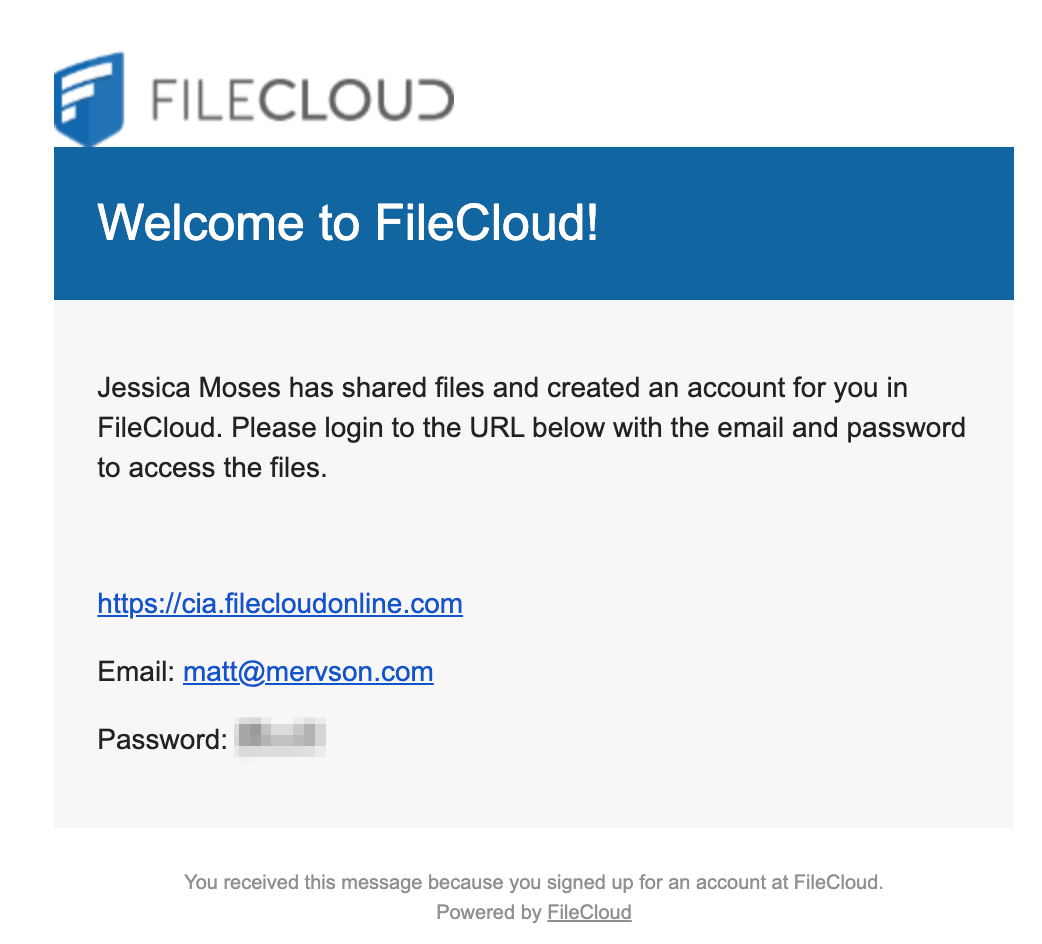
Welcome to FileCloud, CIA's secure document-sharing platform for Board materials. Use the steps below to activate your account and access Board documents. Based on the walkthrough transcript, new users receive an email invitation containing a FileCloud link, username, and temporary password.
Step 1: Open the FileCloud Welcome Email
Look for the Welcome to FileCloud email in your inbox.
The email contains:
- A link to FileCloud
- Your username (email address)
- A temporary password
Copy the temporary password before continuing.
Step 2: Sign In to FileCloud
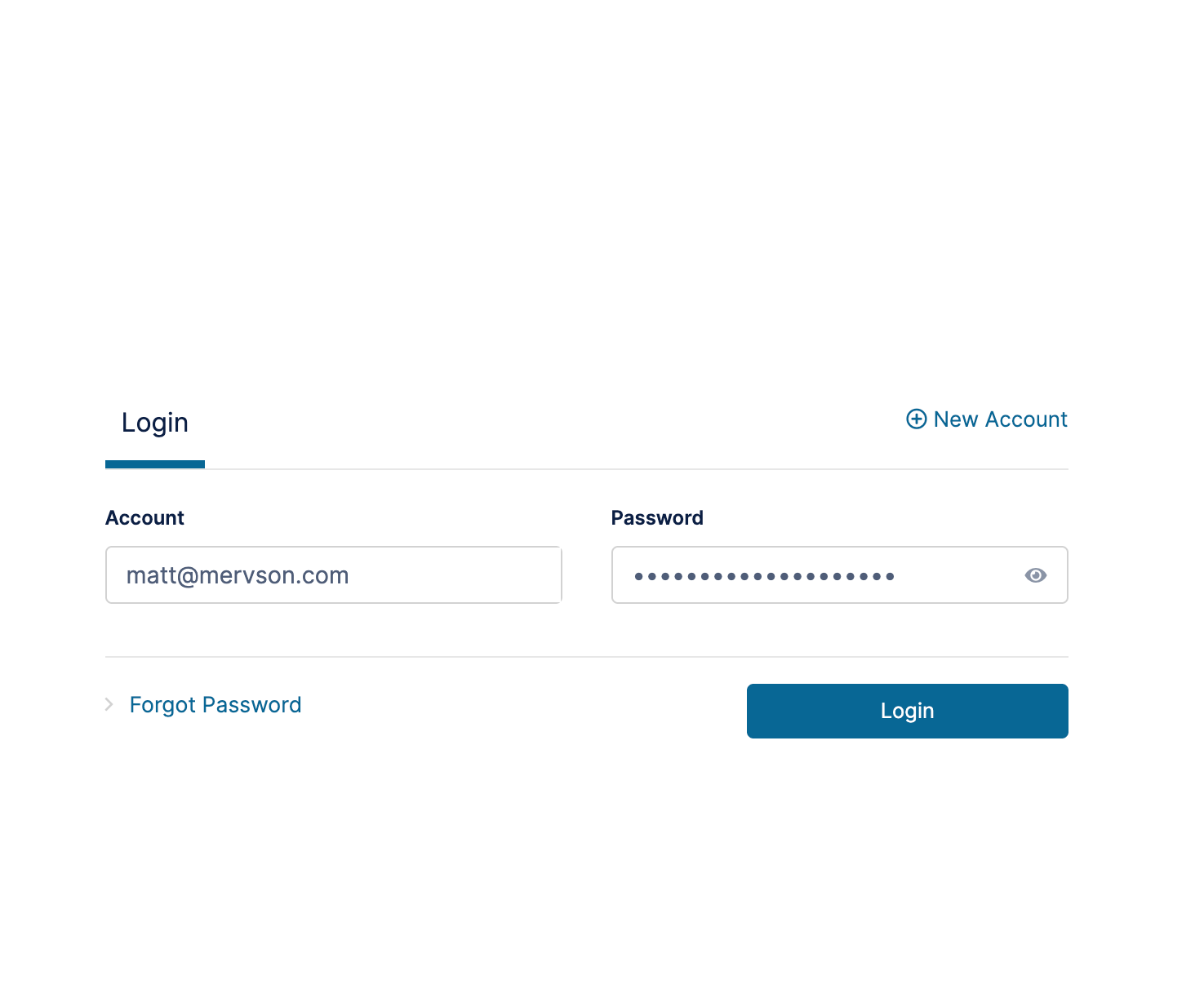
- Select the FileCloud link in the email.
- Enter your email address as your username.
- Paste or enter the temporary password from the invitation email.
- Select Login.
You will be signed in to your FileCloud account. The FileCloud site used by CIA is cia.filecloudonline.com.
Change Your Password (Recommended)

Step 5: Access Documents Shared With You
To view Board materials:
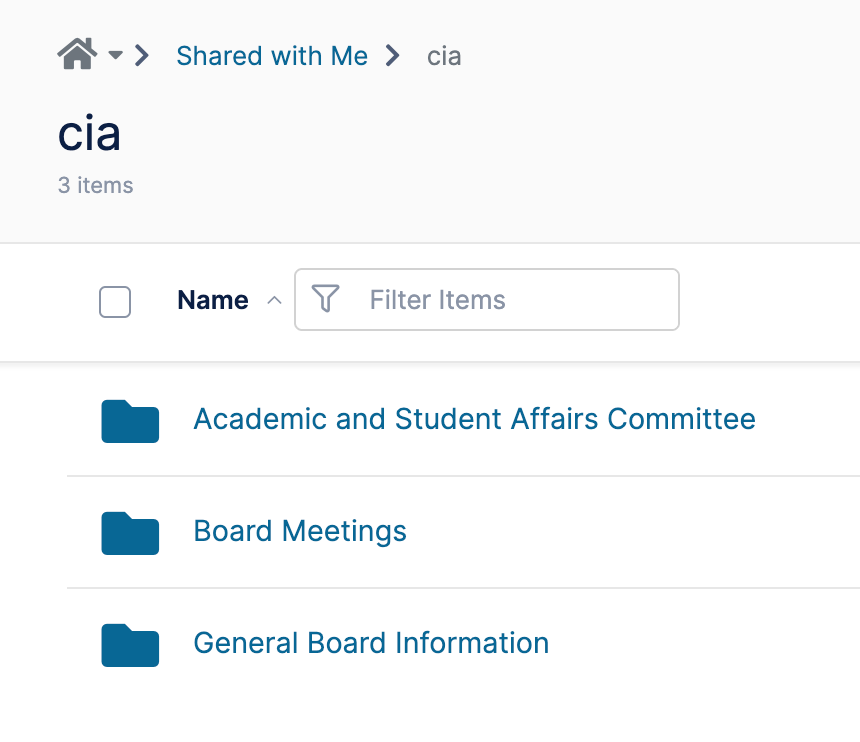
- Select Shared With Me.
- Review the folders available to you.
- Open the folder you would like to access.
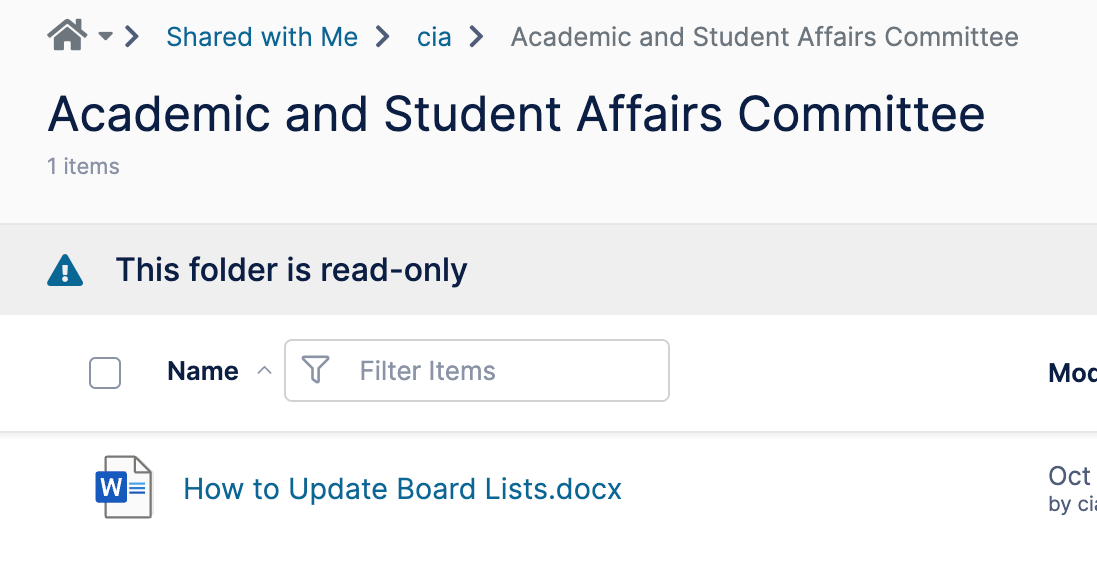
The folders you see will depend on your Board membership and committee assignments. The walkthrough demonstrates access to Board folders and committee-specific folders.
Step 6: Open Board and Committee Materials
You may see folders such as:
- Board Meetings
- General Board Information
- Committee folders assigned to you
Select a folder to view available files and documents. Access is limited to the materials that have been shared with your account.
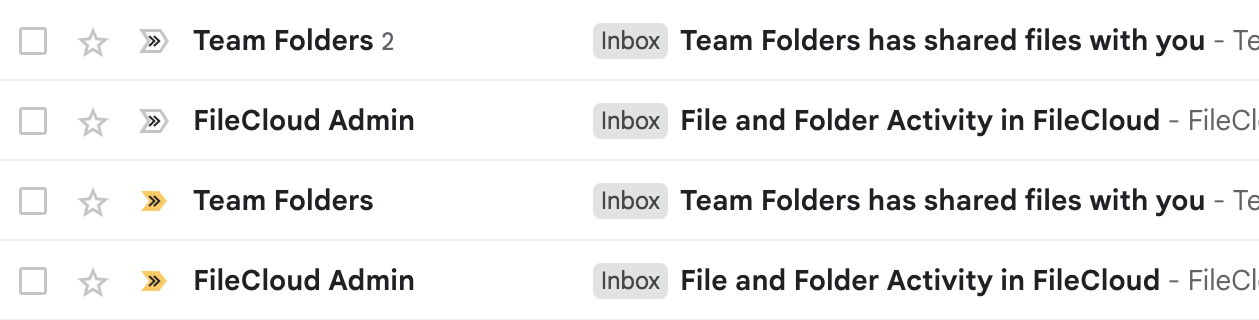
Step 7: Working With Email Notifications
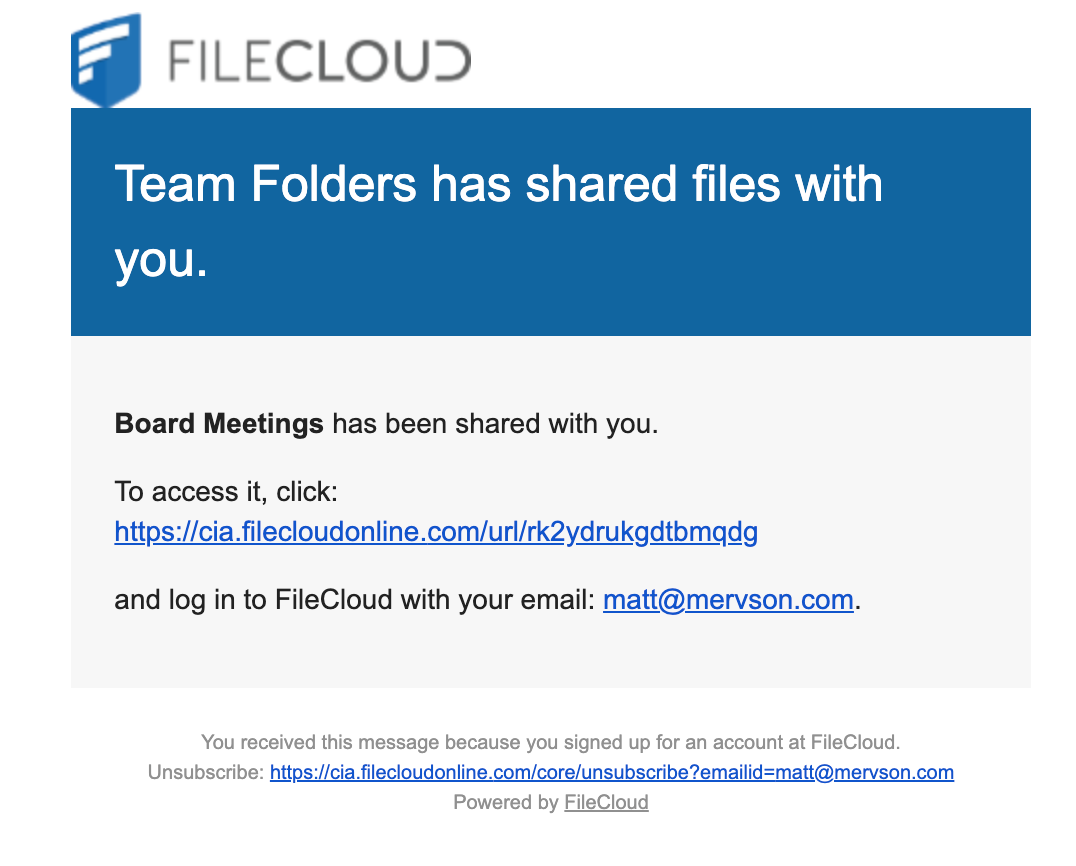
When new files or folders are shared with you, FileCloud will send an email notification.
These emails contain links that take you directly to the shared content. If you are not already signed in, you will be prompted to log in before accessing the file or folder.